Quizzes and questionnaires
Knowledge tests
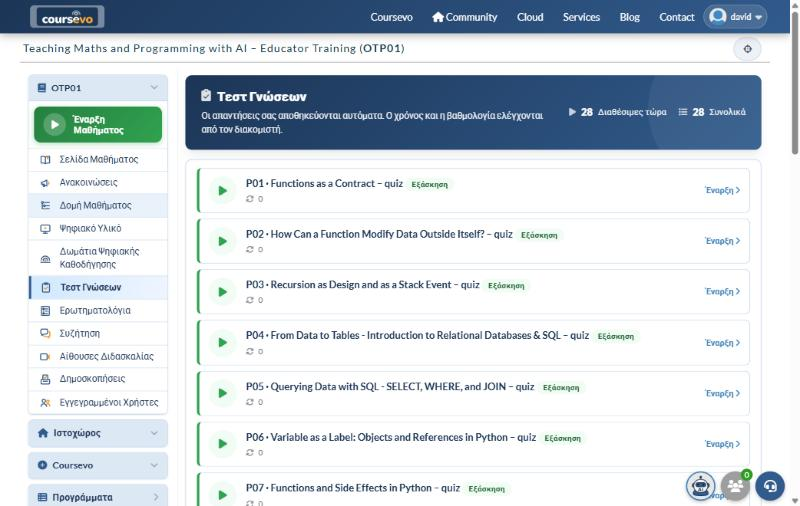
The tests of the space are on the "Quizzes" page, or they open as a step of the course. Your answers are saved automatically, and the time and the score are checked by the server.
The list
For each test you see when it is available, how many minutes it lasts, and how many attempts you have made out of those allowed. "Practice" tests are for practice. If the instructor shows the results, you also see your score; a "*" means some answers are waiting to be graded by the instructor.
Getting started
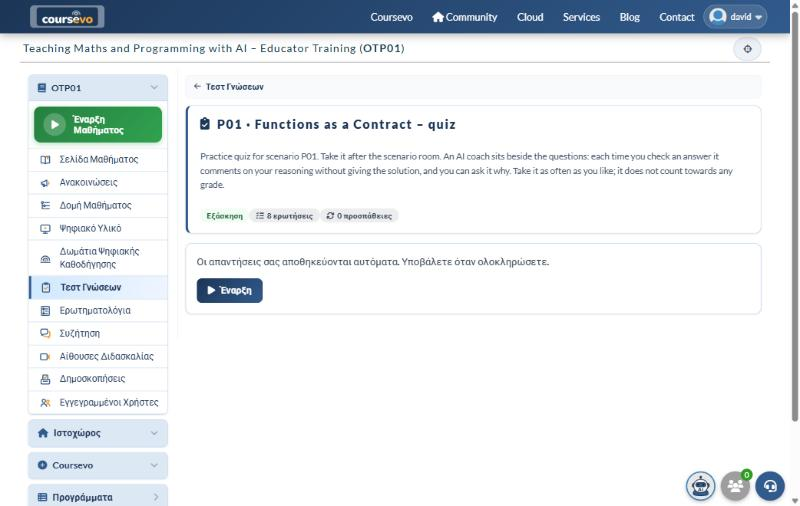
- Open the test. The first page shows whether it is "Practice" or "Exam", the questions, the minutes and the attempts.
- Click "Start" (or "New attempt").
The time counts from 'Start'
In timed tests, the timer starts when you click. When it runs out, your answers are submitted automatically.
If you stop, the attempt stays "In progress" and your answers are saved. Open the test again and click "Continue".
During the attempt
- At the top you see "Question N of M", how many you have answered, and the time left. The time turns yellow at 5 minutes and red at 1 minute.
- Below the bar, "Saved" confirms that the answer was saved.
- The numbered tags take you to any question.
- With "Flag" you mark a question to look at again.
- Move with "Previous" / "Next". From the keyboard: A B C… or 1 2 3… to choose, ← → to navigate.
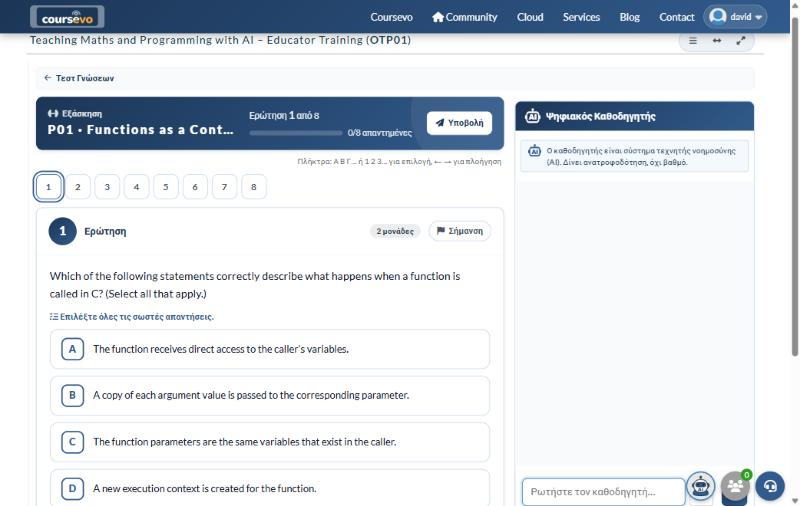
Questions can be multiple choice (one or more correct), true/false, short answer, numeric, matching, ordering, essay, file upload, or fill in the blanks with words (drag a word into the blank, or click the word and then the blank).
Checking an answer (practice only)
In practice tests, "Check answer" tells you right away whether the answer is correct, partly correct or wrong, with feedback. After the check, the answer cannot be changed.
Some practice tests have the AI Coach next to them, an AI system that comments on each answer you check and answers your questions ("Ask the coach…"). It gives feedback, not a grade. At the end it reviews the attempt.
Submitting
- On the last question click "Review". You see which questions are unanswered or flagged; click one to go back to it.
- Click "Submit for good". After you submit, the answers cannot be changed.
If the instructor shows the results, you see the score and, with "View answers", your answers with the feedback. Anything the instructor grades shows "Pending" until it is graded; the score may then change.
When a test does not start
| Message | Meaning |
|---|---|
| "The assessment has not started yet" | The start time has not come yet |
| "The assessment has ended" | The deadline has passed |
| "You have used all the allowed attempts" | No more attempts are allowed |
| "The assessment is only available from specific computers" | The test can only be taken from certain computers, e.g. those of the lab |
| "You do not have access to this assessment" | The test is not meant for you |
Questionnaires
Questionnaires are on the "Questionnaires" page. They have no time limit and no grade.
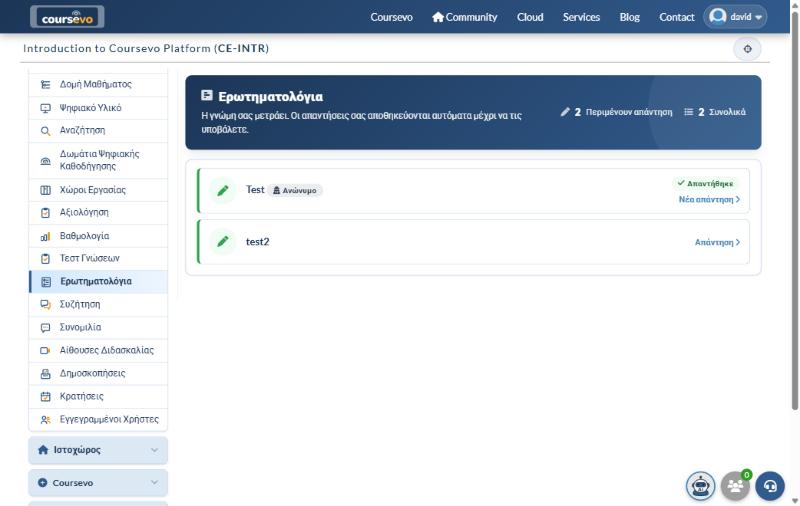
- Click "Reply". If the questionnaire is "Anonymous", your answers are not linked to your name; only the fact that you answered is recorded.
- The questions are on pages ("Page N of M"). Some appear depending on your earlier answers.
- Click "Submit answers" and then "Submit for good".
Your answers are saved automatically until you submit; you can continue later with "Continue". After you submit, they cannot be changed. If the instructor allows it, you see everyone's "Results" in charts, or you submit a "New response".