Setting up AI Coach Rooms
An AI Coach Room combines three things:
- a lesson plan: the parts and activities the AI Coach follows;
- the room knowledge: the material of the space it draws on;
- settings for navigation, availability and the AI model.
You manage the rooms from "AI Coach Rooms" in editing view. The page opens only if the "Artificial Intelligence" service of the space is on.
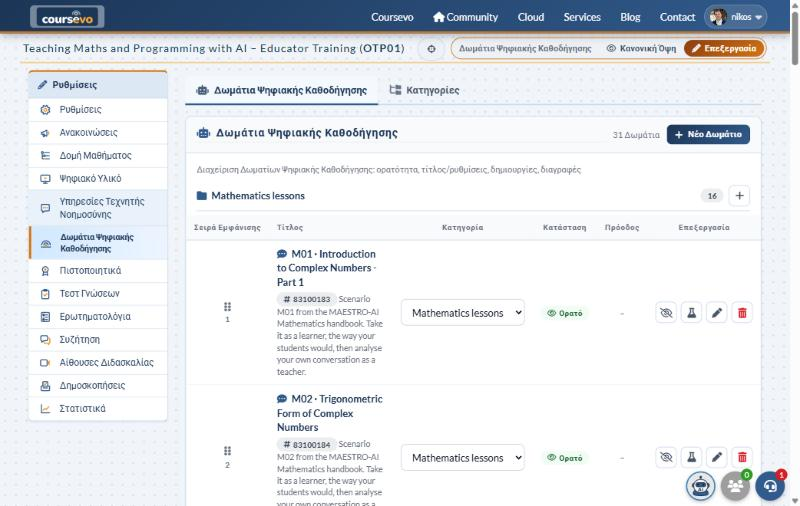
The list of rooms
- "New Room" creates a room. "AI Artifact Generator" first creates a lesson plan with AI (see AI Artifact Generator).
- For each room: "Status" ("Visible" / "Hidden"), the opening and closing schedule, and your own "Progress" from your test runs.
- Actions: "Hide" / "Show", "Test" (opens the room as the learner sees it), "Edit", "Delete".
- Drag the rooms to change their order.
Categories
In the "Categories" tab you group the rooms, for example "Mathematics", "Programming". Learners see them grouped, in the order of the categories. Type the "Category name" and click "New Category". If you delete a category, its rooms are left without a category.
New room
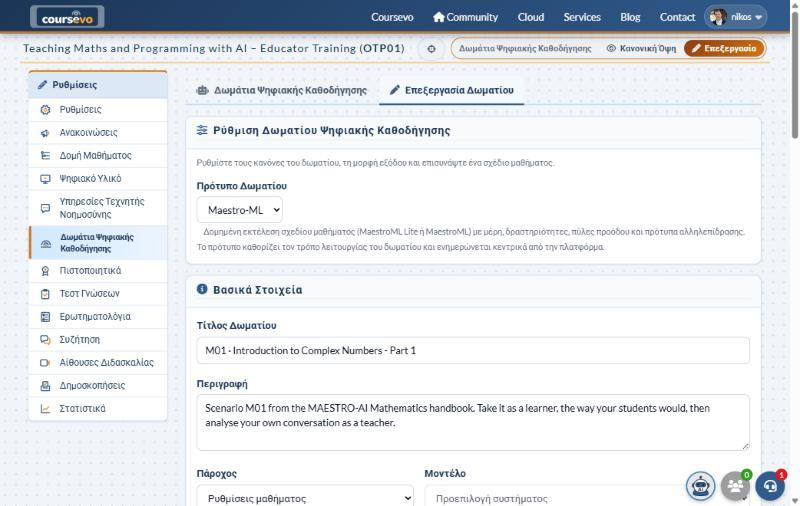
Basic details
- "Room Template": how the room works. The Maestro-ML template (default) gives you the lesson plan editor; "None" allows free instructions.
- "Room Title" and "Description".
- AI "Provider" and "Model". Empty means the settings of the space.
- "Category", if there are categories.
- "Visibility": a new room starts "Hidden". You make it visible from the list when it is ready.
Availability
"Always open" or "Scheduled", with "Opens" and "Closes". One of the two can stay empty. Before the room opens, learners see when it opens; after it closes, they can read their conversation but cannot send messages. You can always enter, for testing.
Lesson plan
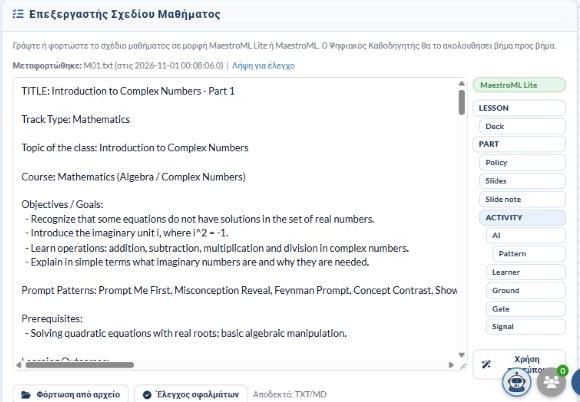
In the "Lesson Plan Editor" you write or load the plan (see below).
Room knowledge
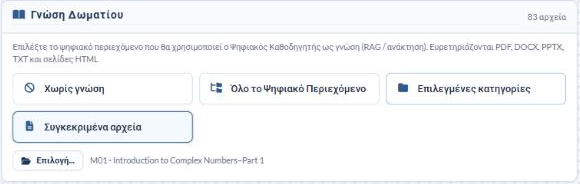
In "Room Knowledge" you choose which material the AI Coach draws on:
- "No knowledge";
- "All Digital Content";
- "Selected categories" or "Specific files", with "Select...".
PDF, DOCX, PPTX, TXT files and HTML pages are read.
Learner navigation
- "Show the "Next Step" button": without it, the learner moves on only when the coach decides they have completed the activity.
- "Source references": the coach shows which material each answer comes from.
- "Code area": the "Code" button for sending code or a .zip, with the "Allowed extensions"
(for example
java,xml,properties).
Click "Save Configuration".
Saving does not erase conversations
When you change a room, learners continue their conversation with the new settings from the next message. Anyone who wants to start over clicks "Reset Room".
The lesson plan
The coach follows the plan part by part. With each message it receives the structure of the plan, the whole current part and a preview of the next one. The platform keeps track of which part each learner is in.
There are two formats:
- MaestroML Lite (recommended): plain text with headings.
- MaestroML: for advanced users, with tags.
A plan in MaestroML Lite looks like this:
TITLE: Introduction to complex numbers
Revisit: ask

CLASS STRUCTURE

PART 1 - Why we need complex numbers
Purpose: ...
Pedagogical Strategy: ...

ACTIVITY 1 - An equation with no real solution
AI: Patterns: Predict first
    Ask the learner to solve x² + 1 = 0 ...
Learner: Tries to solve the equation and explains what happens.
Gate: The learner explains why there is no real solution.
- PART: a part of the lesson, with a purpose and a pedagogical strategy.
- ACTIVITY: an activity, with what the AI does (
AI:), what the learner does (Learner:) and when they move on (Gate:). - Patterns:: the first line of
AI:names the coaching patterns of the activity. - Revisit: whether the learner can go back to earlier parts:
free,askornone.
In the editor:
- The palette buttons (PART, ACTIVITY, AI, Pattern, Learner, Gate, Slides…) insert ready-made lines; "Ground" adds a reference to material of the space.
- "Use template" inserts a ready-made skeleton; "Load from file" loads a TXT or MD file.
- "Check for errors" checks the format, the references to slides and material, and the pattern names.
The easiest way
Create the plan with the AI Artifact Generator, check it, and place it in a room with one button.
Testing and monitoring
- With "Test" you go through the room as a learner: "Start Session", "Next part", "Reset Room".
- In the "AI Services" of the space, the "Tracing" tab shows the use of each room, test and forum per part, and the coach's judgments ("Achieved", "Partially", "Not achieved"). Only site administrators see the text of the conversations.
- The "Signals" tab shows the misconceptions the coach detected; you approve or reject them.