Following a course
The course of a space is organized in units and steps. Each step is something you do: you read a page, watch a video, answer a test, talk with the AI Coach. Their order is the learning path.
Getting started
Inside the space, click "Start Course" in the left menu.
- The first time, the first unit opens.
- After that, you choose where to go:
- "Go to the beginning of the learning path"
- "Go to my last step on the learning path": where you stopped.
- "Go to my furthest step on the learning path": the most advanced point you have reached.
If the button does not appear, the space does not use a learning path. You find its content in the services of the left menu.
From the "Course Structure"
The "Course Structure" page shows all units as cards. With "Continue" at the top you go to the point where you stopped. Each card has a start button (or a padlock, if the unit is still locked) and "View" for its details.
The page of a unit
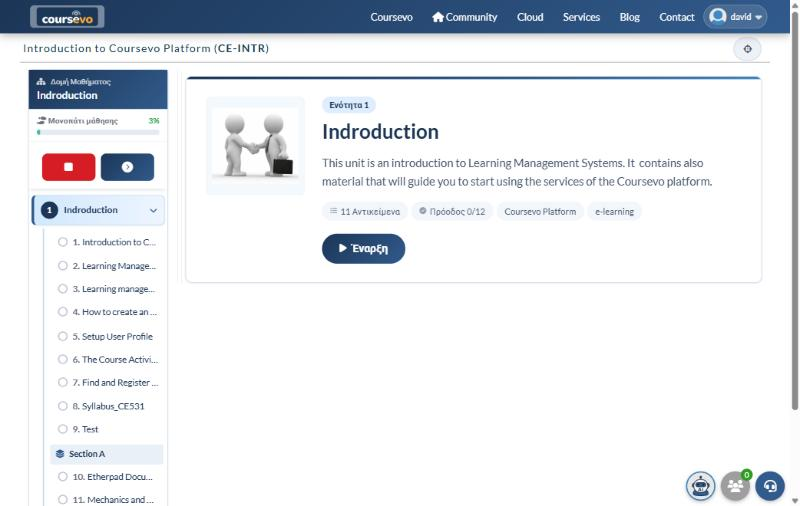
Each unit opens with an intro page: image, "Unit N", title, description, how many items it has, and your "Progress". Click "Start" for the first step.
The course menu
On the left you see the structure of the course:
- At the top, a "Progress" or "Learning path" bar with a percentage.
- The units, numbered. Subunits have numbers like 5.1, 5.2.
- The steps of the current unit, with their status:
| Icon | Meaning |
|---|---|
| The step you are on | |
| Completed step | |
| Step you have not done yet | |
| Locked step; it opens when you complete the previous ones |
Click a step to go straight to it, if it is not locked.
Moving around
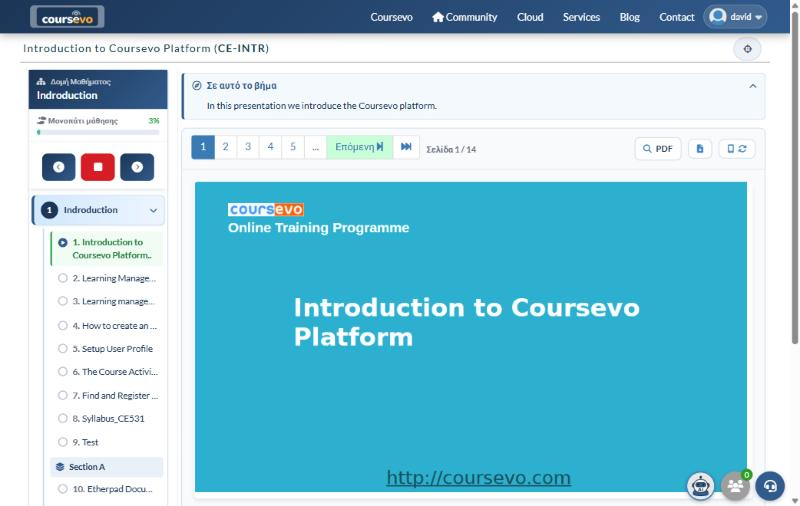
The navigation bar has three icon buttons: previous , stop (back to the space page) and next . On a phone the bar is at the bottom of the screen.
When "next" shows an hourglass 
In courses with a required order, some steps must be completed before you go on. Then the "next" button shows an hourglass and a line with a padlock says what is needed, for example:
- "Submit the test to continue"
- "Answer the questionnaire to continue"
- "Vote in the poll to continue"
- "Post in the discussion to continue"
- "Finish the coaching room to continue"
- "Open the step to continue"
Do what is asked. The platform checks it on its own; you can also click the hourglass to check right away. Once the requirement is met, you go on to the next step.
"One of the steps" units
In some units it is enough to complete one of the steps: the menu says "Complete one of the following" and the unit page shows the steps as cards for you to choose from. When you complete one, "You completed the unit" appears with the "Next unit →" button. The other steps stay open, if you want to look at them.
Instructor notes
- "In this step": a strip at the top of the step that explains what you will do. One click opens and closes it.
- "Next step": a card at the end of the step that links it to the next one. Its button takes you there.
- "Before you continue": when the instructor considers the link important, the first time you click "next" a window with the note appears. Choose "Stay here" or "Continue".
Focus and full screen
On a computer, the title bar of the page has buttons that give the content more room:

- "Focus": the left menu moves aside and the content is centered. Go back with "Show menu".
- "Maximize": the content takes the full width. Go back with "Restore width".
- "Full screen": the content takes the whole screen. Esc takes you back to focus.
AI Coach Rooms and tests already open maximized.
On a phone
At the top there is a bar with your position: unit › section › step. Tap it to see the whole path.