Quizzes and questionnaires
"Quizzes" and "Questionnaires" share the same question engine and a common question bank for the space. They replace the old "Assessment" and "Surveys". What the learner sees: Quizzes and questionnaires.
New quiz
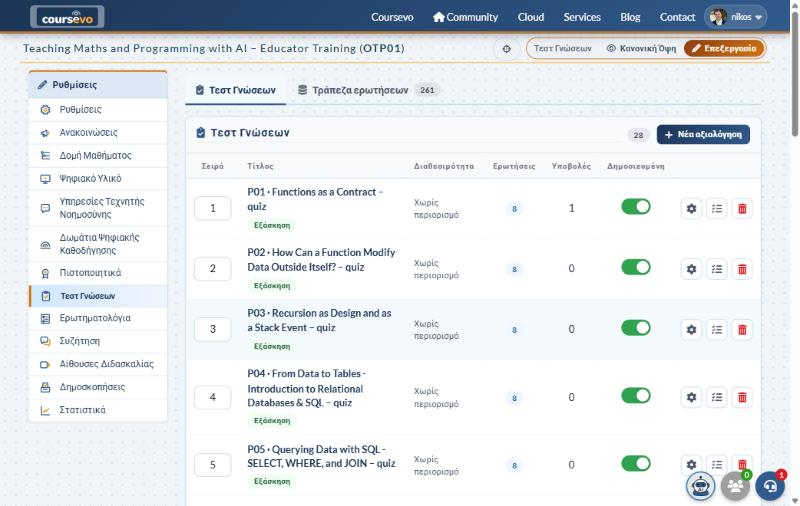
In "Quizzes", in edit view, click "New assessment". A quiz has four tabs.
Settings
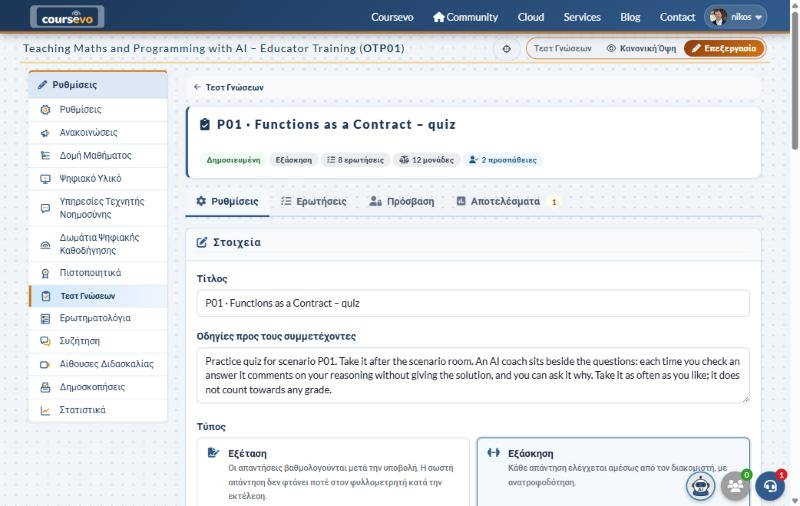
- "Title" and "Instructions for participants".
- "Type":
- "Exam": graded after submission; the correct answer never reaches the browser.
- "Practice": each answer is checked right away, with feedback.
- "Published (visible to participants)".
- "Start" and "End" (empty: no limit).
- "Duration (minutes)" (0: no time limit) and "Maximum number of attempts" (0: unlimited; the gradebook counts the last submission).
- "Random question order in each attempt".
- "Show the grade and feedback after submission" and "Also show the correct answers".
- "Record in the gradebook", with a scale.
AI Coach in the quiz
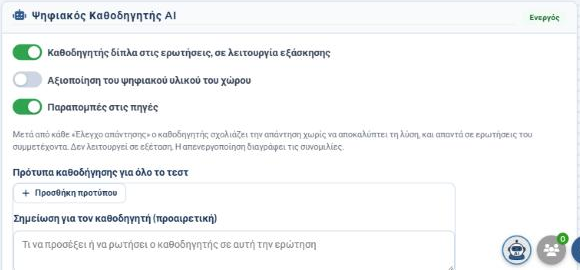
In a practice quiz you can place the AI Coach next to the questions. After each "Check answer" it comments on the answer without revealing the solution, and it answers questions. You set which material it draws on, whether it shows references, and the coaching patterns. It does not work in an exam. If you turn it off, the conversations are deleted.
Questions
Question types:
- "Multiple choice (one correct)" and "(multiple correct)", "True / False";
- "Short answer", "Numerical", "Match", "Ranking", "Fill in the gaps";
- "Essay" and "File submission": graded by you;
- "Information text": text with no answer.
You add questions with:
- "New question";
- "From the bank";
- "Random questions": in each attempt, a number of questions is picked at random from the bank, filtered by tag or type;
- "Import GIFT": paste questions in GIFT format (for example from Moodle) or choose a file. Each question appears for review in "Questions to review"; "Accept" or "Reject", or "Accept valid" for all of them.
For questions made with AI, use the AI Artifact Generator (quiz). "Export GIFT" downloads the questions.
After the first attempts
Once a quiz has attempts, its questions, their order and their points cannot change. To make changes, create a copy of the question.
Access
- "Everyone enrolled" or "Only selected people".
- "IP address restriction": the quiz can be taken only from specific address ranges, for example the computers of a lab.
Results and grading
The "Results" tab shows all attempts, with the filters "Last per participant" and "To grade", and "Export CSV". For essay or file questions:
- Open the attempt and click "Grade".
- Give points and, optionally, a "Comment to the participant".
- "Save and next to grade".
With "Delete attempt" the learner can try again.
Move from the old system
If the space has quizzes in the old "Assessment", "Move from the old system" copies them as drafts, with their settings and questions. With "Enable" the copies are published and take the place of the old ones in the gradebook, in the rooms and in the learning path; the old service is hidden. Old submissions stay in the old system. With "Undo" you go back. Details: Moving old quizzes.
Questionnaires
In "Questionnaires", click "New questionnaire". The tabs are the same as for quizzes, with these differences:
- "Anonymous responses": responses are not linked to the person, not even for administrators. It cannot change after the first responses.
- "The same person may respond more than once".
- "Participants see the overall results after submitting".
- Types: multiple choice, "Rating scale", "Choice matrix", "Open answer", "Ranking".
- Pages: "Start a new page here".
- "Display condition": a question appears depending on an earlier answer.
There is no time limit and no grade.