Learner guide
This section is for people who take courses. It starts with how you find and enter an activity space, and goes on with what you do inside it:
- Your first 10 minutes: from your account to the first step.
- Following a course: the learning path, step by step.
- AI Coach Rooms: chatting with the AI Coach.
- Quizzes and questionnaires
- Polls and forums
- Members and community
- Certificates and Open Badges
- Sandboxes
- Other space services: calendar, FAQ, chats, classrooms, work upload, grades, reservations, search.
First steps, in order
- Create an account and activate it from the e-mail, or sign in with Google (Sign-in).
- Fill in your profile, so others recognize you.
- Find your space under "Programs" and register.
- Read the space page: description, objectives, syllabus.
- Click "Start Course" and go step by step.
- Follow the "Announcements", the "Calendar" and the "Forums".
- Hand in your assignments before the deadline and take the tests while they are open.
- Check your "Grades" and your certificates.
Find a space
From "Programs" (top bar or left menu) you see the catalog of spaces. You can search, filter by program, and sort by "Title", "Code" or "Instructor". Each card shows whether the space is "Active", whether its content is open to everyone or only to registered members, and how you register.
Click a space to open its page.
The space page
The space page ("Course Page") shows:
- the image, the title, the code, the star rating and, if there is one, an intro video;
- how many are "Registered Users" and the "Registration Deadline";
- the description, the "Objectives" and the "Keywords";
- the instructors and the contributors;
- the "Course Structure"; the units stay locked until you register;
- the "Course Syllabus", the bibliography and the license of the content.
With the share buttons you send the link to the space (Facebook, X, LinkedIn or copy link). After you register, you can rate the space with stars.
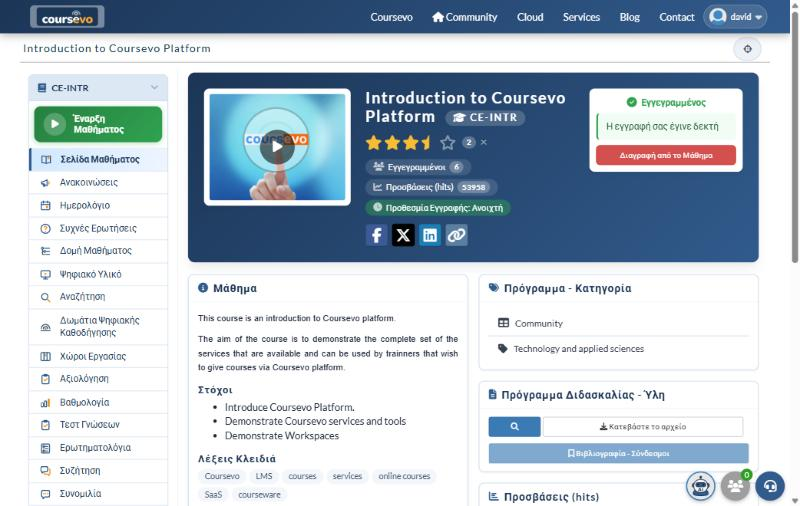
Register in a space
The space page shows how you register:
| Label | What you do |
|---|---|
| "Free registration" | Click "Register for Course" |
| "Registration confirmation is required" | Click "Register for Course" and wait for the instructor to approve it |
| "Register with a code" | Type the code the instructor gave you and click "Register for Course" |
| "Registration is disabled" | Only the instructor can register you; contact them |
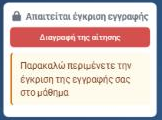
While you wait for approval, the space shows "Pending Registration Approval" on your home page, and you can withdraw the request with "Delete the request". Once it is accepted, the space page says "Your registration has been accepted".
To leave a space, click "De-register from course" on its page.
Registration deadline
If the space has a deadline, the "Registration Deadline" label shows how many days are left. After the deadline the register button no longer appears.
The services of the space
Inside the space, the left menu has the "Start Course" button at the top and, below it, the services the instructor has turned on. Common services:
| Service | What it does |
|---|---|
| "Announcements" | News of the space |
| "Digital Content" | Documents, presentations, pages and links of the course |
| "Course Structure" | The units of the course |
| "AI Coach Rooms" | Chatting with the AI Coach |
| "Assessment", "Surveys" | Tests and questionnaires |
| "Polls" | Short anonymous votes |
| "Forums" | The forum of the space |
| "Workspaces" | Groups and group work |
| "Grades" | Your grades |
| "Calendar" | Deadlines and events |
| "Classrooms" | Live classes by video conference |
| "Registered Users" | The members of the space and the badge ranking |
| "FAQ" | The instructor's answers to common questions |
| "Chats" | Live text chat |
| "Reservations" | Places in labs, rooms or equipment |
| "Search" | Search across all the content of the space |
Most of them are described in Other space services.
If you have not registered, the menu says "You are not registered in the activity space".