Learning units
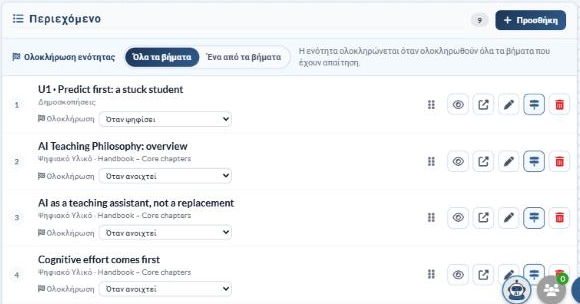
The course is organized in units. Each unit has steps: material, tests, rooms, forums and more. You manage the units from the editing menu, "Course Structure".
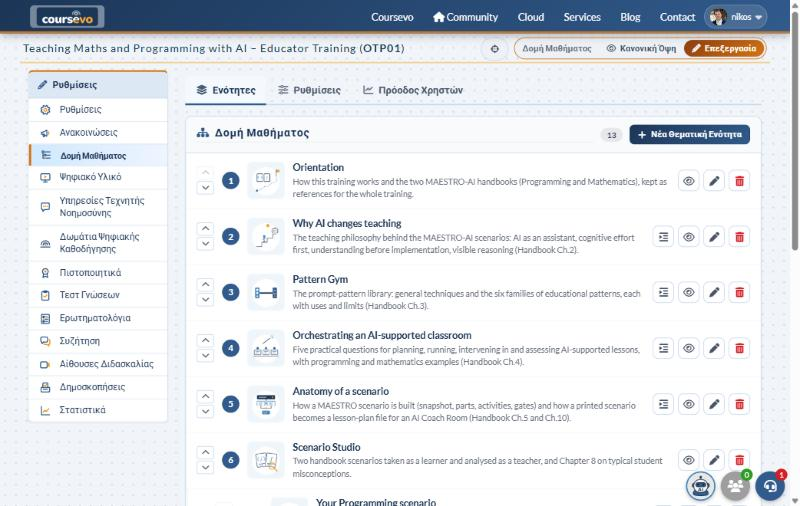
The list of units
- "New Course Unit" adds a unit.
- Units are numbered 1, 2, 3… and subunits 2.1, 2.2…
- For each unit: move up/down, "Hide/Show", "Edit" and "Delete".
Subunits
A unit can have subunits, on one level:
- "Make it a subunit of the unit above" turns a unit into a subunit of the one above it.
- "Move out of its unit" turns it back into a unit.
- In the unit editor, "Subunit of" sets its place.
If you delete a unit, its subunits become units.
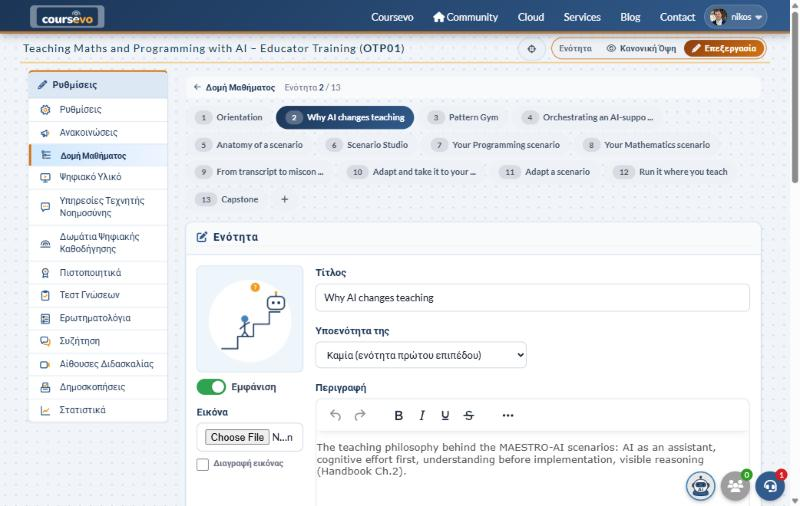
Editing a unit
In the editor of a unit:
- "Show", "Image" (up to 512 KB), "Title", "Description" and "Keywords".
- "Generate content with AI" in the text editor writes a first draft with AI, which you check and correct.
- With the buttons at the top you go to another unit without returning to the list.
Adding steps
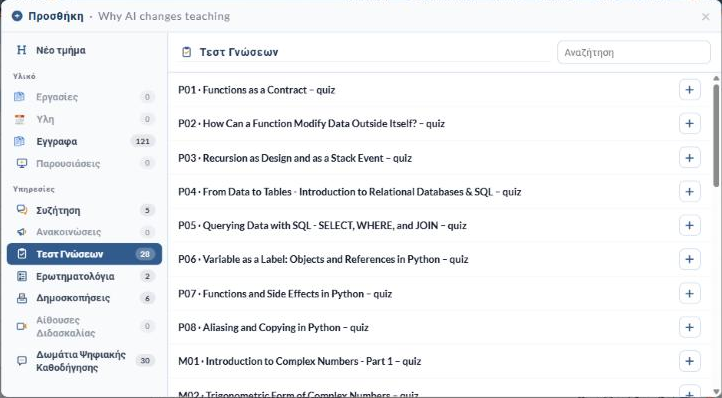
In the "Content" card click "Add". A window opens with sources on the left and items on the right:
- "Material": the digital content categories and the "Presentations". With "New item" you create material directly in a category.
- "Services": "Forums", "Announcements", "Quizzes", "Questionnaires", "Polls", "FAQ", "Classrooms", "Workspaces" (and their deliverables), "AI Coach Rooms".
- "New section": a heading that divides the content of the unit (for example "Theory", "Exercises"). Sections do not count as steps.
Click on an item to add it to the unit; "Remove" in the message that appears undoes it. Anything already in the unit does not appear in the list.
You change the order of the steps by dragging them by the "Order" handle.
Step notes
With "Step notes" on a step you write:
- "Step introduction": shown above the content ("In this step").
- "Bridge to the next step": shown at the end, together with the next step.
- "Important: show before the next step": the bridge appears in a pop-up window when the learner clicks "next".
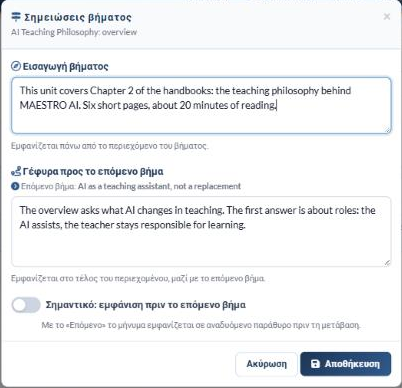
Plain text, up to 4000 characters. How the learner sees them: Following a course.
Unit completion
The "Unit completion" bar sets when the unit is completed:
- "All steps": when all steps that have a requirement are completed.
- "One of the steps": when one of them is completed; the rest stay optional. The learner chooses from cards.
What counts as completion for each step: see Learning paths.