Spaces and runs
An activity space is a run of a course, for example for one semester. Site administrators create new spaces; you set yours up from "Settings" in the editing menu. The settings have six tabs: "Services", "Staff", "Description", "Information", "Access", "Registration".
Description
The "Description" tab sets what the space page shows:
- "Image" (800×800) and "Select Course Introductory Video" (from the presentations of the space);
- "Description", "Objectives" and "Keywords" (separated by commas);
- "Course Syllabus": a file, or "Insert file from previous periods";
- bibliography and links.
You cannot change the course code and title here; site administrators change them.
The "Information" tab has two free texts, "Teaching" and "Support", for example office hours and ways to get in touch.
Services
In the "Services" tab you turn on or off what the space will have, in groups: "Information", "Content & Learning", "Artificial Intelligence", "Assignments & Assessment", "Communication & Collaboration", "Organization & Monitoring".
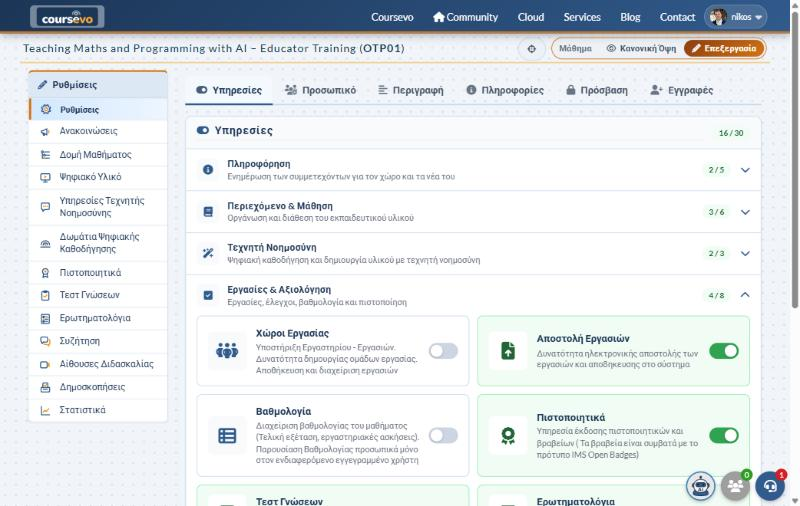
- The AI services (AI Coach Rooms, AI Artifact Generator and others) work only when the main "Artificial Intelligence" service is on.
- The old "Assessment" and "Surveys" are marked "Deprecated"; use "Quizzes" and "Questionnaires" instead.
Access and registration method
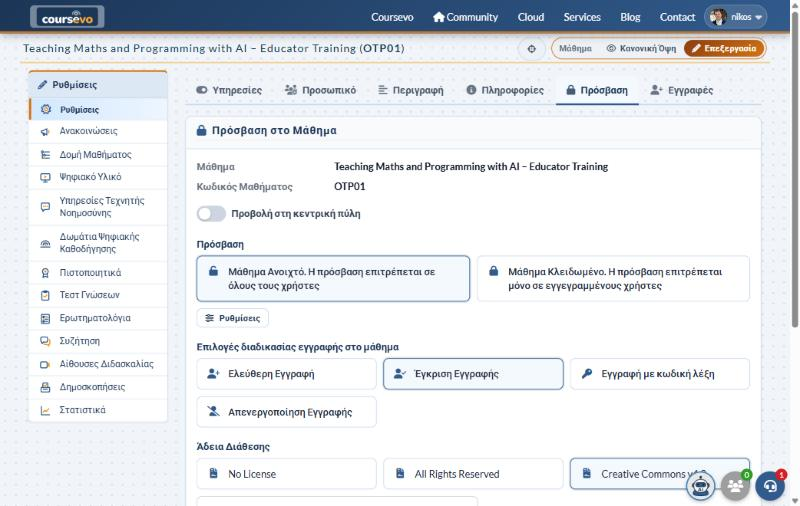
In the "Access" tab:
- Access: "Open Course" (everyone sees the material) or "Locked Course" (only registered users). In an open space, with "Settings" you set for each service whether it is for "All" or "Registered Users".
- Registration method:
| Option | What happens |
|---|---|
| "Free Registration" | Learners register themselves |
| "Confirm Registration" | The request waits for your approval |
| "Register with a code" | Anyone who knows the code word you set can register |
| "Disable Registration" | You register the learners yourself |
- "License": the license the material is offered under.
Deleting a space
"Delete Course" at the bottom of the tab deletes all the material of the space. You are asked to confirm.
Registration
The "Registration" tab has:
- "Registered Users": the members of the space. Check "Delete" and click "Update" to remove someone.
- "Requests": the "New Registration Requests". Check "Confirm Registration" (or "Delete") and click "Update". The learner gets a message.
- "Insert": you register users yourself, from the user list.
- "Deadline": "Activate Deadline" and the closing date for registrations.
- "Send Invitations": you send an e-mail invitation to addresses you add.
Staff
Who teaches and who manages the space: see Space staff.