AI Artifact Generator
The AI Artifact Generator uses AI to create three kinds of material, based on the content of your space:
| Kind | For |
|---|---|
| "Lesson plan" | AI Coach Rooms |
| "Document" | Notes, guides, documents in the digital content |
| "Quiz" | Questions for Quizzes |
You open it from the editing menu, or from the "AI Artifact Generator" buttons in the rooms and in the digital content.
The library
The first page shows all the material created in the space, with the filters "Plans", "Documents", "Quiz" and search. Each item has a status: "Draft", "Pending approval", "Approved", "Rejected". Material by other instructors opens read-only.
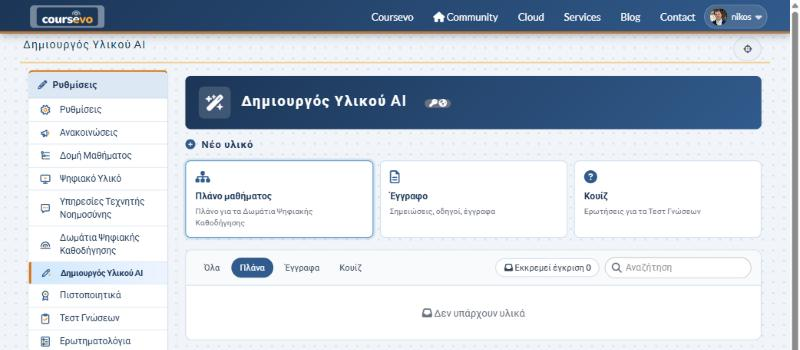
New material
- Choose a kind and "How do you want to start?":
- "Blank": you write it yourself;
- "With AI": you describe what you want;
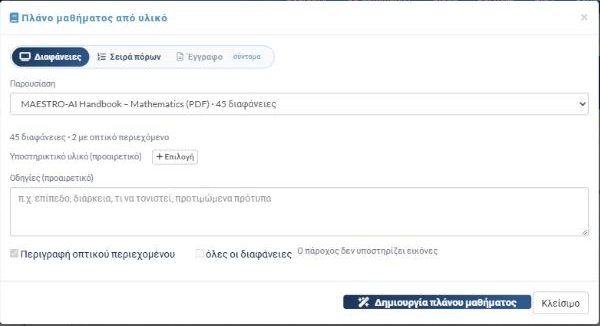
- plan "From material": from a presentation or from a series of documents of the space;
- document "From a template";
- quiz "From misconceptions": questions on the misconceptions the AI Coach recorded.
- Give a "Title" and describe "What should be created?": topic, level, duration, number of parts or activities, focus, patterns you prefer.
- Choose the "Knowledge for the AI": which material of the space it will draw on.
- Click "Generate with AI".
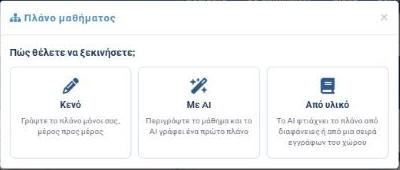
Lesson plan in two stages
A plan is created in two stages:
- The outline: the parts of the lesson, without activities. Check their titles and order and change anything you want.
- "Fill the parts": the AI writes the activities, one part at a time ("Part 2 of 5"). You can "Stop" and "Continue".
If you say how many parts you want, the plan has exactly that many, with no extra summary part. Without an instruction, each part gets 1–3 short activities.
From a series of documents: you create the parts in the order you want and add each part's documents with "+". Each part is written from its own documents, and the AI does not add, remove or change parts. Up to 40 parts.
From a presentation: you choose a presentation of the space and, optionally, supporting material and instructions. The lesson follows the slides.
Editing
In the workspace of the item:
- The plan has the views "Structure" (a form per part and activity), "Source" (the text), "Preview" and "Print".
- The "AI assistant" on the side makes the changes you ask for ("Ask for a change...").
- In "Structure", for each activity: "Instruction to the AI coach", "Learner task", "Progression condition", "Reference material" and the patterns (see Coaching patterns).
Warnings
The Generator warns you when an activity has no "Patterns:" line, when a pattern does not exist in the library, or when the progression condition is missing. Fix these before you place the item.
Approval and placement
- Click "Submit for approval". Another administrator of the space (or you) clicks "Approve" or "Reject". With "Back to draft" you work on it again.
- Only approved material is placed in the course:
- plan: "Place into the AI Coach Rooms" opens a new room with the plan and the knowledge filled in; check it and click "Save Configuration";
- quiz: "Place in Quizzes" creates an unpublished test with the questions;
- document: "Place into Digital Content", in the category you choose.
For a quiz there are also "Download GIFT", "Import from GIFT" and "Run" for testing.