Digital content
The "Digital Content" of the space is organized in categories (folders). In editing view you see the categories with the number of items in each.
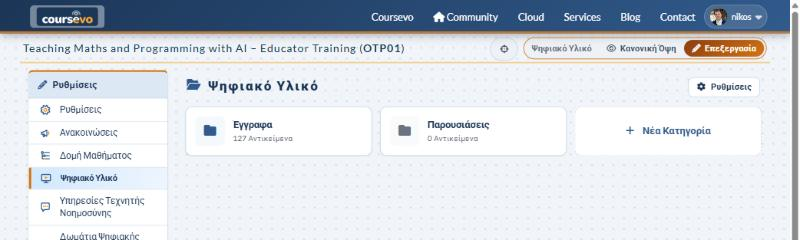
Categories
- "New Category" adds a category; inside a category you can create subcategories.
- You change the order, rename with "Edit", or delete a category.
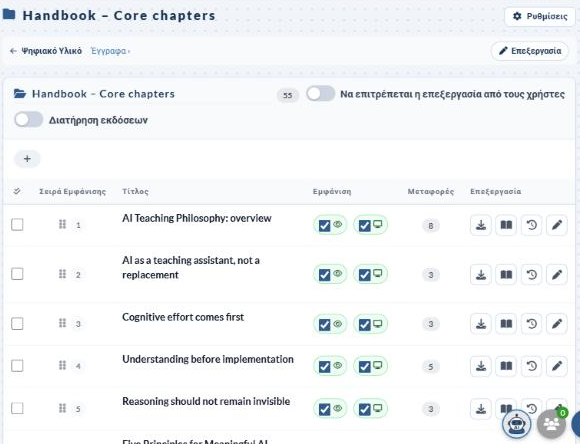
- Each of your own categories has two settings:
- "Allow users to edit";
- "Keep versions": every change to a file creates a new version and the old one is kept.
Adding material
Inside a category click "Add" and choose:
- "File": you upload a file (PDF, Word, PowerPoint, image, video…).
- "Link": an
https://address. - "HTML": a page you write in the editor. You can save it as a "Template" or start from an existing template.
Fill in "Title" and "Description" (or "Content" for HTML). Under "Access":
| Setting | What it does |
|---|---|
| "Show File" | Learners can see the material |
| "Create Presentation" | Documents (PDF, Word, PowerPoint, LibreOffice) are converted so they can be viewed page by page inside the platform |
| "Allow Annotations" | Learners comment on the document |
In the list, the same icons show the settings of each file. Click "Update" to save changes to the order or the settings.
The AI Coach reads your material
The AI Coach and Coursevo Bot answer based on the material of the space. They read PDF, Word (.docx), PowerPoint (.pptx), text (.txt) files and HTML pages. They do not read other formats (for example .doc, .xlsx, .odt); convert them to one of the formats above.
Copy, move, import
- Check files and click "Copy" or "Cut". Open the target category and click "Paste".
- With "Search" you bring in material from previous periods or from your other spaces.
- With "AI Artifact Generator" you create material with AI; see AI Artifact Generator.
Shared material and versions
A file can be used in many spaces, for example after copying a space. When you change it, the platform asks whether it should change everywhere ("Update existing") or become a new version for your space only ("Create new version").
Settings
With the "Settings" button of the page:
- "Uniform heading look": HTML pages show their headings consistently, and short bold lines (for example from Word) appear as headings. The content does not change.
- "Re-index Content (AI)", for site administrators only: reads all the material again for the AI.