Help: Coursevo Bot and support tickets
At the bottom right of every page there are three round buttons:
| Button | What it opens |
|---|---|
| Users icon with a number | The "Online" users and a chat with them |
| Bot image | The Coursevo Bot, an AI assistant |
| Headset | Support tickets |

Coursevo Bot
The Coursevo Bot answers questions about using the platform and about the content of the space you are in.
- Click the bot icon at the bottom right. A chat window opens.
- Write your question in your own words, in any language, for example "How do I change the language?".
- The bot replies in your language.
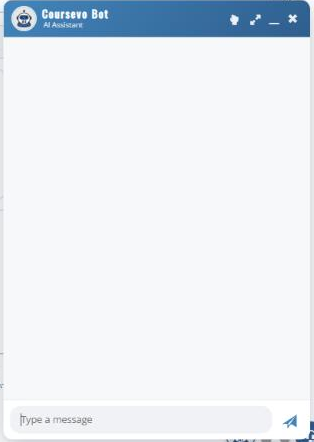
Where its answers come from: only from the site's documents, such as this documentation, and from the digital content of the space you are in. If the answer is not there, it says so and suggests where to look; it does not make up facts or links.
The bot is AI
The answers are produced by an AI model and may contain mistakes. For anything important, check the documentation page or open a support ticket. See AI in Coursevo.
The bot button appears while the page's chat connection is active, together with the online users button. If you do not see it, reload the page.
Chatting with other users
The users button opens the "Online" list, with search. Click a name to open a chat window. You can move, minimize and close the window from its top bar.
Support tickets
For a problem, question or suggestion for the administrators, click the button at the bottom right. The "Support tickets" window opens, with the "New ticket", "Open" and "Closed" tabs. The window stays open as you move around the platform.
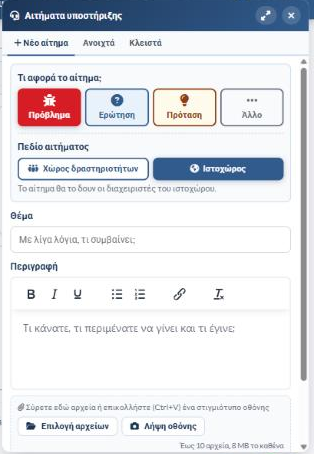
New ticket
- Choose "What is this about?": "Problem", "Question", "Suggestion" or "Other".
- Choose the "Scope":
- "Activity space", and which space (the one you are in is preselected): the space administrators see the ticket;
- "Site": the site administrators see the ticket.
- Write a short "Subject".
- In the "Description", write what you did, what you expected to happen and what happened.
- Optionally, add files: drag them into the box, paste a screenshot with Ctrl+V, or click "Capture screen". You can mark up an image with "Pen" or "Text" before you send it.
- Click "Submit ticket". You receive the ticket number.
Along with the ticket, the page you are on and your browser are recorded, to make the problem easier to find.
File limits: up to 10 files, 8 MB each, 30 MB in total. Executable files and scripts are not accepted.
The life of a ticket
| Status | What it means |
|---|---|
| "New" | No one has seen it yet |
| "In progress" | Support is looking into it |
| "Awaiting reply" | Support is waiting for a reply from you |
| "Resolved" | Support considers it solved |
| "Closed" | The ticket is closed |
In the "Open" and "Closed" tabs you open a ticket, read the replies from "Support" and answer. A new reply reopens a ticket that has been closed or resolved. With "Close ticket" you close it yourself.
The number on the headset button shows how many replies you have not read.