AI Coach Rooms
In an AI Coach Room you chat with the AI Coach, an AI system that guides you step by step through the content, based on the instructor's lesson plan.
You are chatting with an AI system
The coach's replies are generated by artificial intelligence and may contain mistakes. The coach follows the lesson plan and does not give ready-made solutions: it helps you reach them yourself.
Where to find them
- From the "AI Coach Rooms" page of the space, or
- as a step of the course.
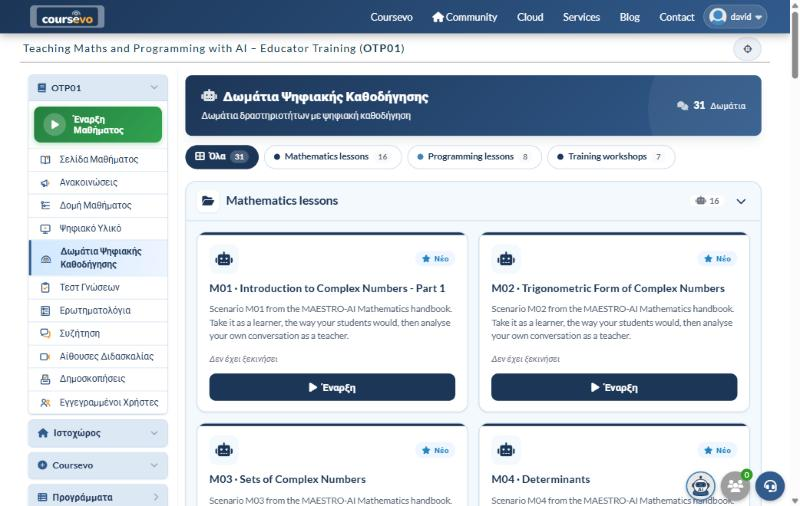
On the rooms page each card shows the status ("New", "In progress", "Last part", "Closed") and the "Progress" in parts. The card button is "Start", "Login" (for a room you have started) or "View" (for a room that has closed). If set, the card also shows when the room opens or closes.
The first time
- Open the room. "Welcome to this room!" appears.
- Click "Start Session". The coach starts the first activity.
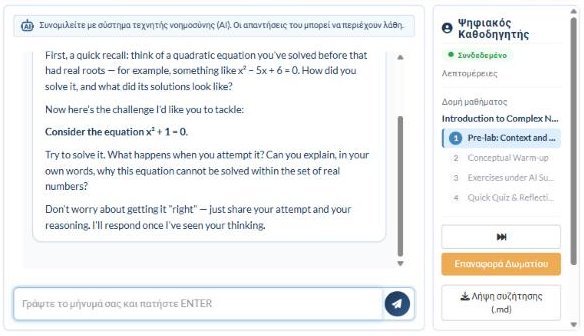
- Reply in the "Write your message and press ENTER" field. Shift+Enter starts a new line.
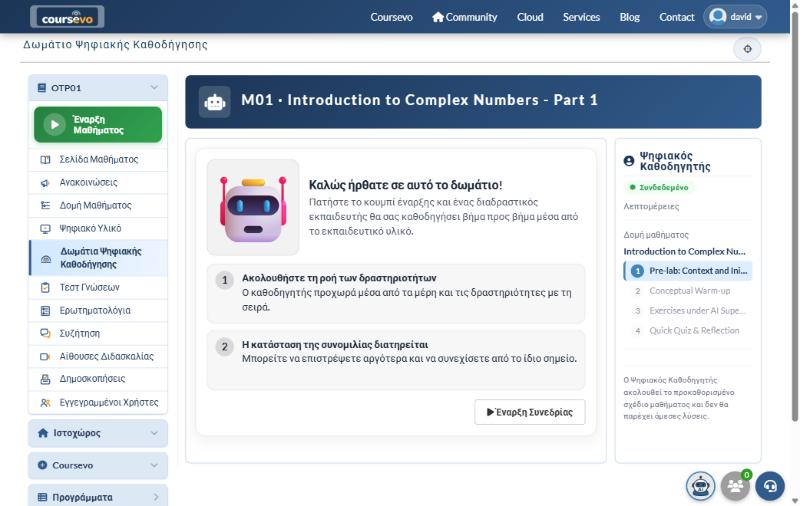
The conversation is saved. You can leave and continue later from the same point. If you come back after a break, the coach welcomes you, reminds you where you were, and goes on.
Parts and activities
The room's lesson is divided into parts, and each part into activities. The "AI Coach" panel on the side shows the "Lesson outline" and where you are. On a phone the panel opens from "Coach panel".
- "Next part": goes to the next part. It is disabled while the coach is replying and on the last part.
- "Next activity": in rooms with activities, goes to the next one.
- In some rooms you can go back to an earlier part from the "Lesson outline".
You usually do not need to click them: the coach moves on by itself when you complete an activity.
Course step
When the room is a step of the learning path, it is completed when you reach the last part.
Slides
In rooms with a presentation, the slides appear next to the conversation:
- "Previous slide" / "Next slide": you page through the slides you have already reached, without the coach moving on.
- "Back to the coach's slide": returns to the slide of the conversation.
- "Enlarge slide": the slide in full screen; the keyboard arrows page through, and Esc or "Back to the room" takes you back.
- "Hide / show slides": hides or shows the slides.
Sending code
In programming rooms there is the "Code" button. It opens a window where you:
- drag a .zip, a project folder or code files, or click "Choose files" / "Choose folder"; only files with the "Allowed extensions" are accepted;
- or paste the code in the "Paste your code here" field;
- optionally write what you want to ask, and click "Send code".
Sources of the replies
If the room shows sources, the replies have numbered tags [1], [2]. Click one to see the excerpt of the content the reply comes from. From there you can open the whole document ("Open document") or copy the excerpt.
When it is open
The instructor can set when a room opens and when it closes:
- Before it opens: "The room is not open yet. It opens on …".
- Open with a deadline: "Available until …".
- After it closes: you can read your conversation, but you cannot send new messages.
Other options
- "Download conversation (.md)": downloads the conversation as a text file.
- "Reset Room": deletes the conversation and you start over. You are asked to confirm.
- "Details": the AI model and how much you have used ("Credits used").
Messages you may see
| Message | What you do |
|---|---|
| "The message is too long…" | Shorten the message or split it in two |
| "The AI Coach did not reply. Please try again." | Send the message again |
| "You are approaching your AI usage limit" | You have used 80% of your limit |
| "AI usage limit reached…" | Contact the administrator |
| "The AI provider's usage limit was temporarily exceeded…" | Try again in a moment |
| "The room was updated by the instructor. The session starts over." | The instructor changed the room; continue from the start |